Author: admin

  • Core Web Vitals Explained: What to Measure and Why SEO Cares

    Core Web Vitals Explained: What to Measure and Why SEO Cares

    Google does not only measure keywords — it also cares about how fast and stable your site feels to visitors. That is where Core Web Vitals come in: three metrics that summarize loading, interactivity, and visual stability. If your site fails on mobile, you can lose rankings even when content is strong.

    This guide explains what they mean, which thresholds Google uses, and what to measure first — without assuming you are a performance engineer.
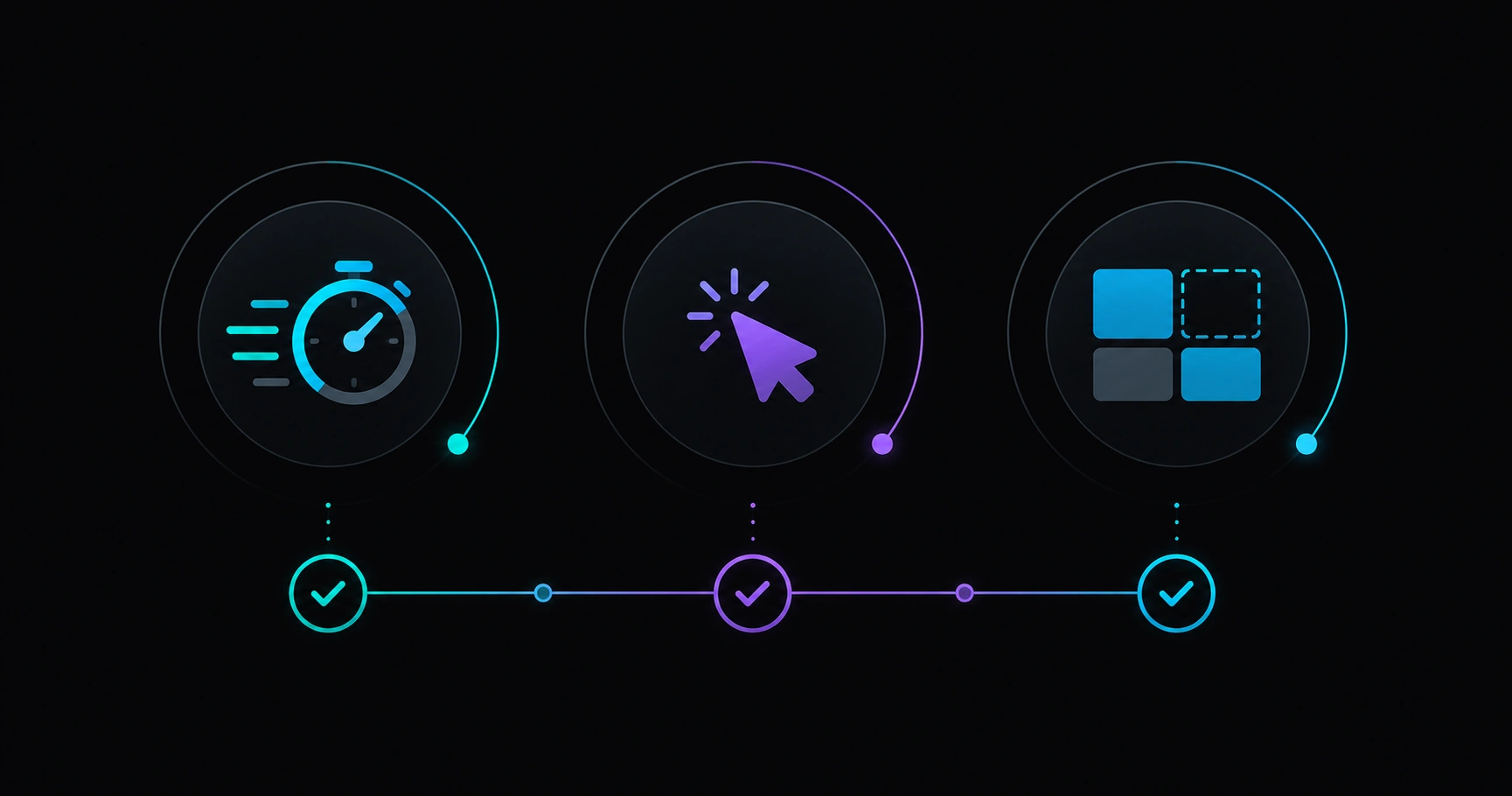
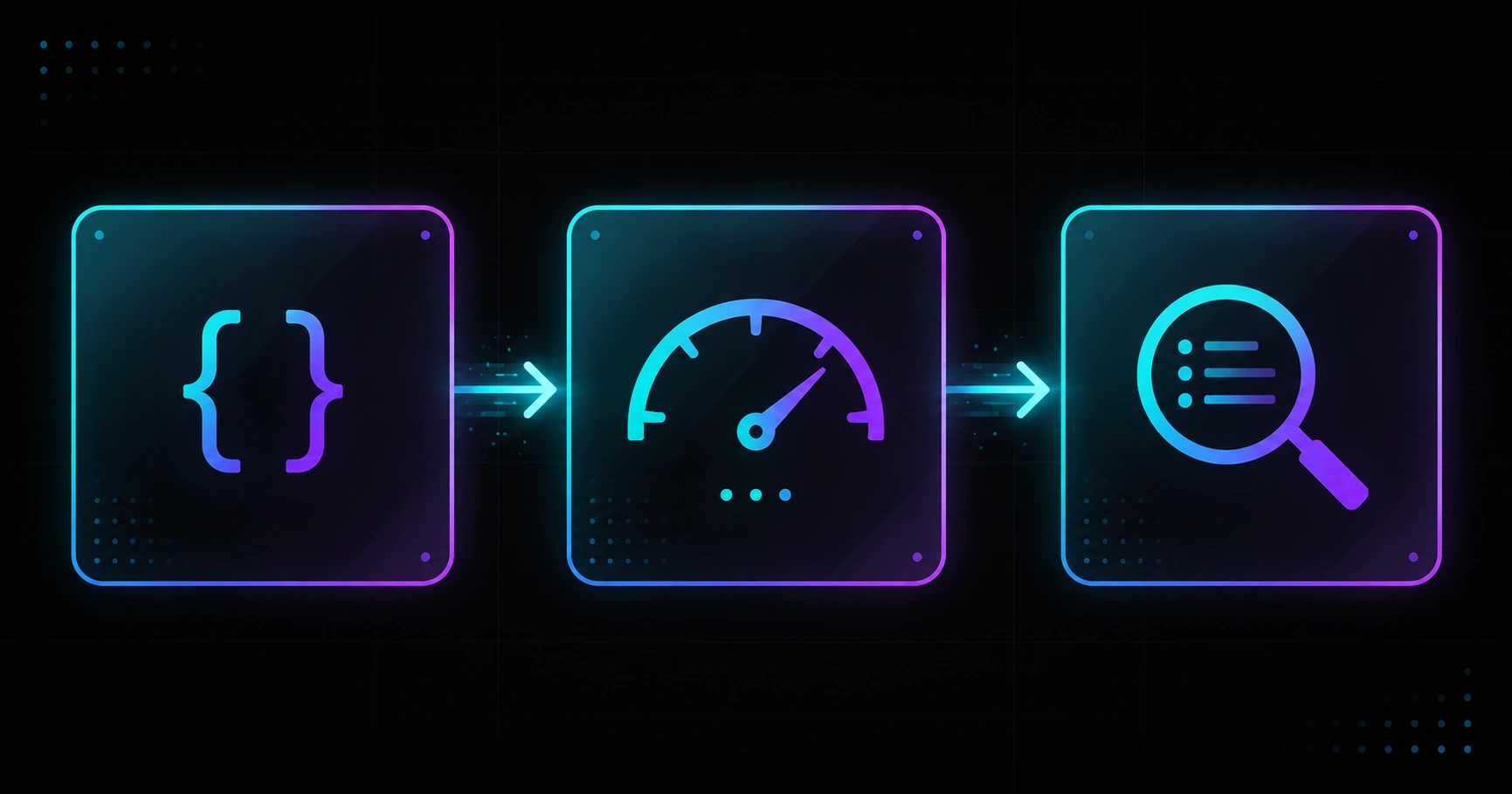
    Three abstract icons representing LCP, INP, and CLS: load speed, response time, and visual stability
    Core Web Vitals compress real user experience into three numbers Google may use as quality signals.

    Table of contents

    What Core Web Vitals are

    Core Web Vitals (CWV) are a set of web performance metrics Google uses to evaluate page experience. They do not replace good content or sound technical foundations, but they can influence rankings when two pages compete for the same search intent.

    Since 2021 they have been part of page experience signals. In practice, most teams track them because:

    • They reflect what users experience on mobile — where most traffic happens.
    • They can be measured with free tools (PageSpeed Insights, Search Console).
    • Fixing them often improves conversions and bounce rate, not just SEO.

    The three metrics: LCP, INP, and CLS

    LCP — Largest Contentful Paint (loading)

    Measures how long until the main content block appears: a hero, a large image, or a prominent headline. If visitors stare at a blank screen too long, LCP suffers. It is the most visible metric for people arriving from search.

    INP — Interaction to Next Paint (responsiveness)

    Largely replaced the older FID metric. It measures latency when users interact: clicking a button, opening a menu, submitting a form. A site that feels sluggish on tap often has high INP even when LCP looks fine.

    CLS — Cumulative Layout Shift (visual stability)

    Counts how much the layout jumps while loading: a banner pushing text, a font resizing, an ad shifting the buy button. It frustrates users and hurts perceived quality.

    For priority order from a technical team perspective, see our guide on SEO for developers: what to measure first.
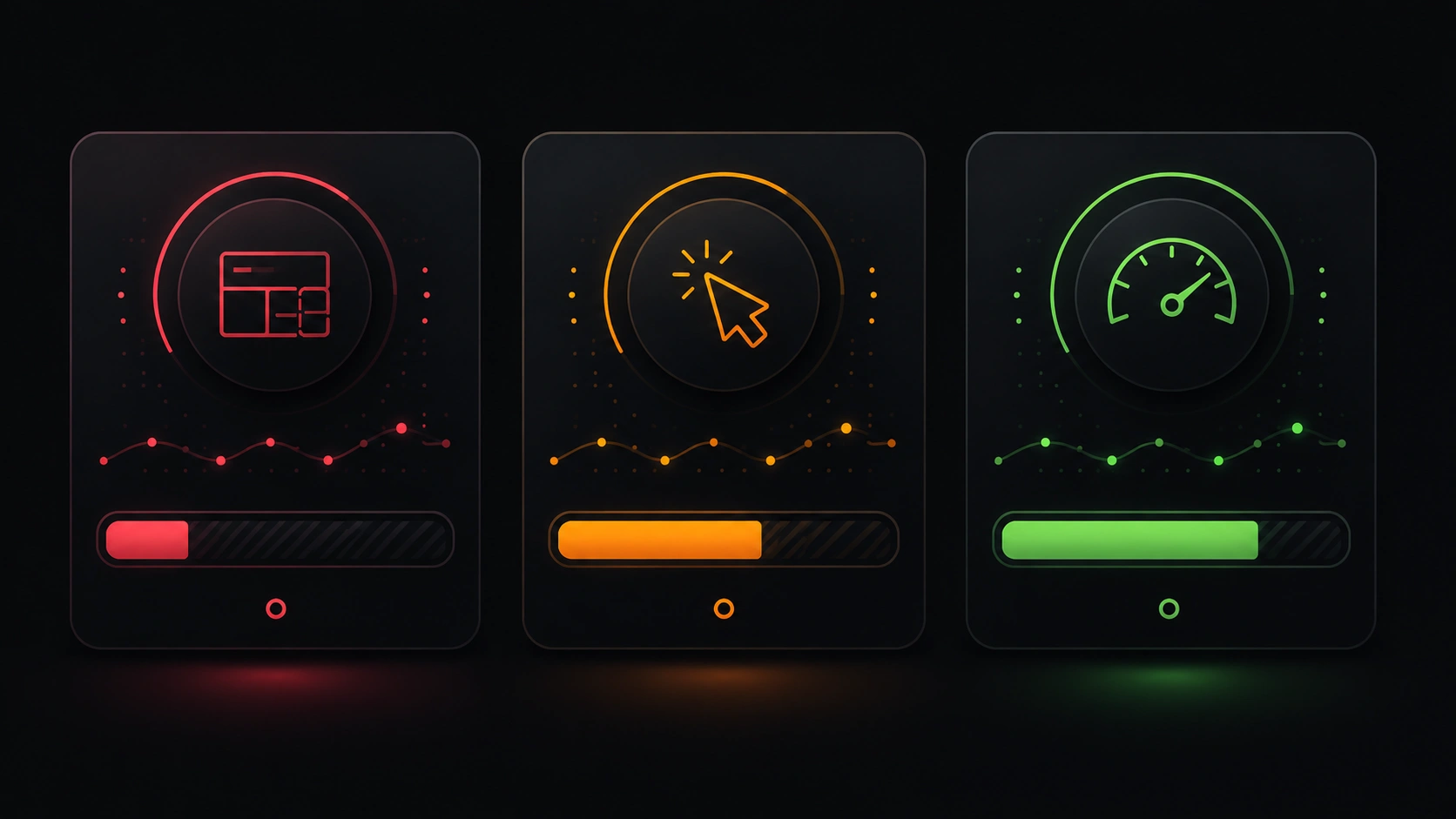
    Three abstract gauges in green, amber, and red representing good, needs improvement, and poor thresholds
    Each metric has public thresholds: green does not guarantee position one, but red is usually a warning sign.

    Why they matter for SEO

    Google has repeated that helpful content comes first. Still, CWV act as a tiebreaker: between two relevant URLs, the faster and more stable one has an edge. Also:

    • More efficient crawling: slow pages consume crawl budget; Google may index fewer URLs on your domain.
    • Indirect CTR benefits: a smooth site retains users longer; positive engagement reinforces visibility over time.
    • Mobile-first alignment: Google primarily indexes the mobile version; CWV are evaluated largely on real devices.

    Speed optimization is not a Google hack — it aligns product, UX, and SEO. Well-built modern frontends (including headless setups done right) can make good CWV easier, but architecture alone fails if images weigh megabytes or the server responds slowly.

    Thresholds: good, needs improvement, poor

    Google publishes reference ranges (they can change; always check official docs). Practical summary:

    Metric Good Needs improvement Poor
    LCP ≤ 2.5 s 2.5 – 4.0 s > 4.0 s
    INP ≤ 200 ms 200 – 500 ms > 500 ms
    CLS ≤ 0.1 0.1 – 0.25 > 0.25

    Search Console groups URLs into Good, Needs improvement, and Poor based on field data (real Chrome users). PageSpeed Insights blends lab and field data — useful for diagnosis, but they do not always match perfectly.

    What to measure first (and where to look)

    1. Home and conversion landings — they usually get the most search traffic and clicks.
    2. Product or service templates — one template issue affects hundreds of URLs.
    3. Mobile version — prioritize mobile even if analytics show desktop converts more.

    Common tools (without diving into setup):

    • Google Search Console → Experience report → Core Web Vitals.
    • PageSpeed Insights — single URL, recommendations per metric.
    • Lighthouse in the browser — quick lab diagnosis (great during development).

    For the full measurement toolkit, see our SEO DevTools guide for developers.

    Once you understand the three metrics, move on to a practical PageSpeed audit: interpret PSI, compare lab and field data, and prioritize fixes. You can also test your URL with the PageSpeed simulator on our technical SEO landing.

    Common causes of poor scores

    High LCP

    • Uncompressed hero images or oversized resolutions.
    • Slow server or missing cache (high TTFB).
    • Fonts or scripts blocking initial render.

    High INP

    • Heavy JavaScript on the main page.
    • Third-party widgets (chat, analytics, maps) competing on the main thread.
    • Forms or filters that recalculate too much on interaction.

    High CLS

    • Images or videos without reserved space (width/height).
    • Banners or pop-ups inserting content above the fold.
    • Web fonts that change text size when they load.

    Most causes are cross-platform: whether you run classic WordPress, a headless CMS, or a modern framework — diagnosis starts with measuring and prioritizing.

    Quick checklist before asking for help
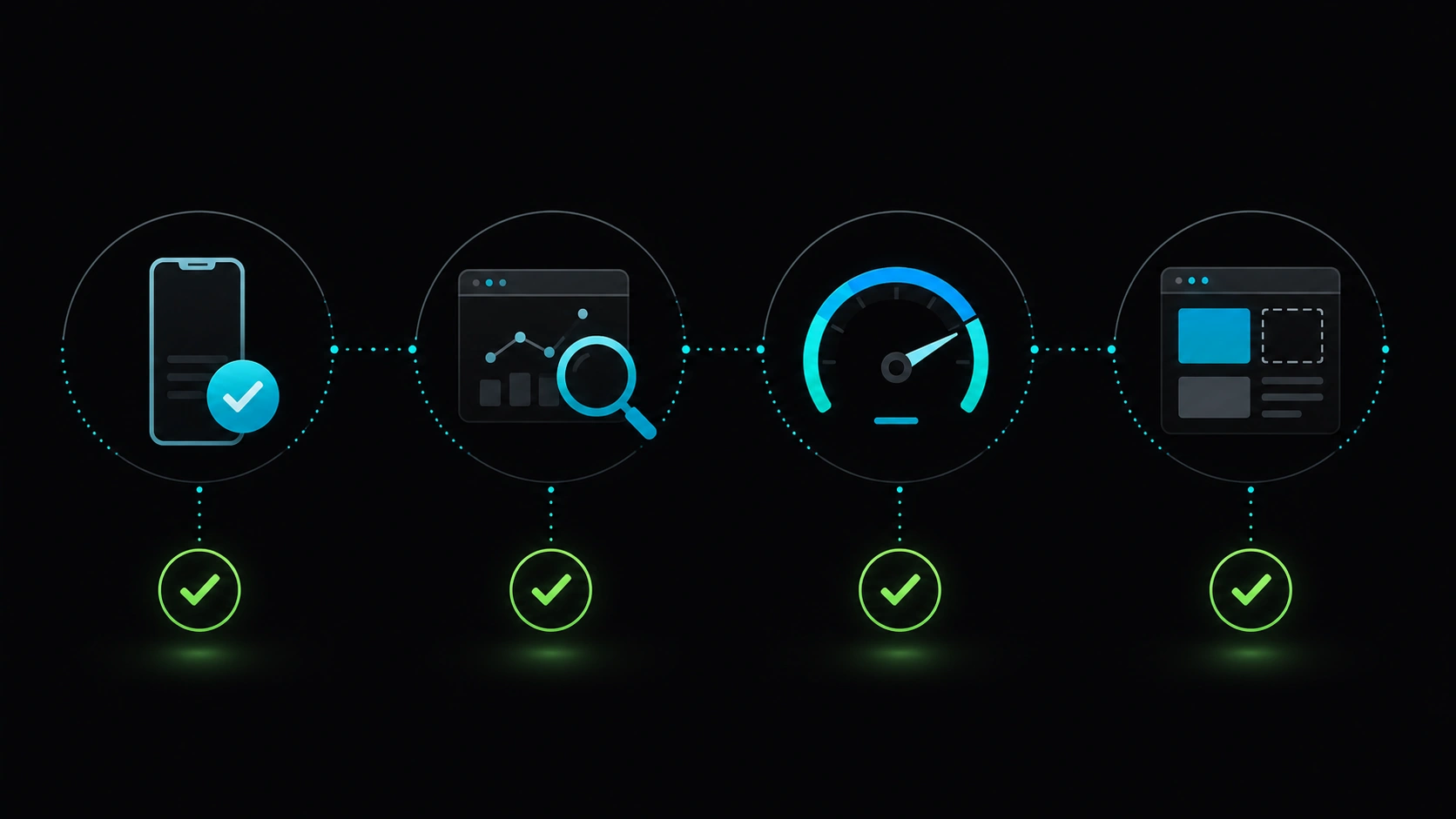
    Abstract Core Web Vitals checklist: measure mobile, review templates, compare field and lab data
    A solid improvement plan starts with real data, not blind theme or hosting changes.
    1. Do you have the CWV report in Search Console without mass crawl errors?
    2. Have you tested home and main landing in PageSpeed (mobile)?
    3. Does the issue affect one URL or an entire template?
    4. Do field data (real users) confirm what you see in the lab?
    5. Have you noted what changed on the site before metrics worsened?

    If you are still in the red after this, a prioritized technical SEO audit with an action plan for LCP, INP, and CLS beats a generic quick fix. For the step-by-step measurement workflow, see our practical PageSpeed audit guide.

    Common myths

    “A 100 Lighthouse score means top rankings”

    Lighthouse is lab data. Google also uses field data. You can score 100 locally and still show Needs improvement in Search Console.

    “Hosting alone fixes CWV”

    Good hosting helps LCP, but images, scripts, and design matter equally. Upgrading plans without measuring is often expensive and ineffective.

    “CWV only matter for e-commerce”

    Any site competing in search benefits: blogs, B2B landings, corporate sites.

    “A cache plugin fixes everything”

    Cache mitigates TTFB and HTML but does not fix CLS from layout or INP from excessive JavaScript.

    FAQ

    How long until Core Web Vitals improve after optimization?

    Field data in Search Console updates on roughly 28-day cycles. After deploying fixes, allow at least a month for a stable trend.

    What is the difference between field and lab data?

    Field: real users, varied networks and devices — what Google uses for ranking CWV. Lab: controlled simulation — great for debugging, not always representative of your audience.

    Should I optimize desktop or mobile first?

    Mobile. It is the primary reference for mobile-first indexing and where the worst LCP and INP often appear.

    Do Core Web Vitals replace content?

    No. A fast site with weak content does not rank. Secure indexing and relevance first; then tune CWV to win the tiebreaker.

    Want to know how your Core Web Vitals look?

    Veloce Devs offers a free PageSpeed and technical SEO audit: LCP, INP, CLS, and a prioritized action plan for your site.

    Free SEO audit Try PageSpeed simulator

  • Headless WordPress with Next.js: What It Is and Why It Matters for SEO

    Headless WordPress with Next.js: What It Is and Why It Matters for SEO

    More businesses hear the phrase headless WordPress with Next.js, but few explain what it actually means — and even fewer how it affects Google rankings. This guide gets straight to the point: clear concepts, real benefits, and when it is worth considering.

    You do not need to be a developer to grasp the idea. You do need to know what to expect before investing in an architecture different from a traditional WordPress theme setup.

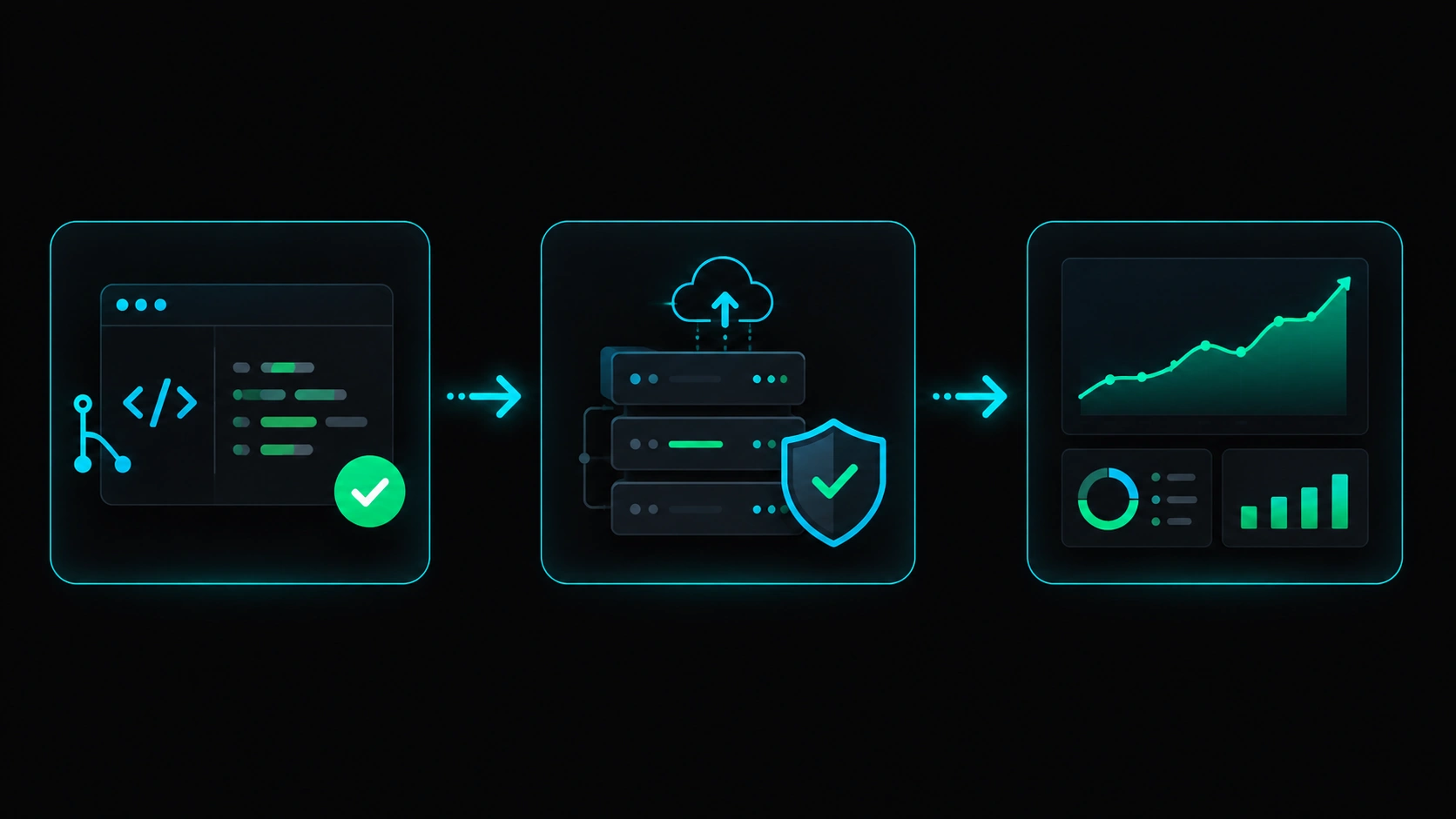
    Conceptual diagram: WordPress as content manager and Next.js as the public website layer
    In a headless setup, WordPress stores content; another layer (Next.js) is what users and Google see.

    Table of contents

    What headless WordPress with Next.js means

    In classic WordPress, the same system creates content and renders the site visitors see: you write a post in the dashboard and a PHP theme displays it.

    In a headless approach, WordPress stays as the content hub: pages, blog posts, images, and copy live there. But the site users browse — and Google crawls — is built by another tool. In many modern projects, that layer is Next.js, a widely used framework for fast, scalable websites.

    In short: headless WordPress with Next.js = content in WordPress + web experience in Next.js. They work together, each doing its job.

    SEO and performance benefits

    Google rewards useful, fast, technically sound sites. A well-executed headless project can help on three fronts:

    1. Load speed

    Generic WordPress themes often load scripts and styles every page does not need. A dedicated frontend can serve only what is required, improving metrics like LCP — one of the Core Web Vitals worth measuring first.

    2. Control of public HTML

    SEO depends on the HTML Google receives: titles, descriptions, internal links, structured data. Separating content from presentation lets you optimize that layer without disrupting the editorial workflow in WordPress.

    3. Product scalability

    If your site is not just a blog — service landings, interactive tools, client areas — Next.js fits better than a monolithic theme. More flexibility usually means better user experience, which also influences quality signals.

    Abstract speed comparison: classic WordPress site versus modern headless approach
    An optimized frontend can cut load times compared with a bloated WordPress theme full of unused features.

    When it makes sense (and when it does not)

    Scenario Headless + Next.js?
    Company site with blog and service landings Yes, if you want performance and medium-term growth
    Personal blog or small site with few yearly updates Probably not — a solid WordPress theme is enough
    Standard WooCommerce store with limited technical budget Evaluate carefully — complexity increases
    SEO and speed as a competitive edge Yes — one of the most common reasons
    Team with no developers and no maintenance agency Not recommended — ongoing technical support is required

    Headless is not a trend for its own sake: it is a bet on separating content from the web product. If you only publish occasional posts and never touch code, stay on classic WordPress. If you compete for Google rankings in demanding niches, it is worth exploring.

    What to check before launch

    Before calling a headless wordpress nextjs project done, validate the essentials — without diving into implementation details:

    1. Mobile speed: test key pages with PageSpeed Insights or a simulator. Failing on mobile will hurt SEO.
    2. Google indexing: check Search Console. Important URLs should crawl without mass errors.
    3. Unique titles and descriptions: every page needs its own search snippet.
    4. Internal links: blog, services, and contact should connect logically.
    5. Editorial experience: the team writing content must publish in WordPress without friction.

    To go deeper on measurement tools, see our SEO DevTools guide.

    Abstract SEO checklist: speed, indexing, snippets, and internal links
    Headless SEO success is judged by measurable outcomes, not architecture alone.

    Common myths

    “Headless is bad for SEO”

    False. Google indexes the public site, not the WordPress dashboard. If that layer is fast, clear, and error-free, headless can rank as well as or better than a generic theme.

    “WordPress becomes useless”

    Not at all. It remains the content engine. What changes is who designs the building facade.

    “Next.js is only for Silicon Valley developers”

    It is widely used by agencies and digital products. What matters is having someone to maintain it.

    “Moving to headless fixes SEO overnight”

    Architecture helps, but content, authority, and ongoing monitoring remain essential.

    FAQ

    How much does a headless WordPress + Next.js project cost?

    It depends on scope: number of templates, languages, integrations, and maintenance. It usually costs more than a premium theme, but less than rebuilding the site every two years because of performance issues.

    Can I still edit content the same way?

    In most setups, yes. WordPress remains the editing panel. What changes is how that content appears on the final site.

    Does it work for multilingual SEO?

    Yes, but it requires planning. Each version of a page must be clear for Google and users, without careless duplicate content.

    How is this different from “Next.js vs classic WordPress for SEO”?

    This post explains the combination of both. A direct comparison of approaches is covered in a dedicated blog article.

    Considering headless WordPress?

    Veloce Devs helps companies and technical teams with fast websites, solid SEO, and custom digital products. Tell us about your project.

    About Veloce Devs Contact

  • SEO for Developers: What to Measure First

    SEO for Developers: What to Measure First

    When developers think about SEO, they usually picture keywords and meta descriptions. But real rankings start earlier: at the server, in the code that generates HTML, and in the HTTP headers no one sees at a glance. SEO for developers is not about writing good copy—it is about building a technical foundation that does not block Google.

    The problem is that there are dozens of possible metrics. This guide gives you the right order to measure what matters most first, without drowning in data.

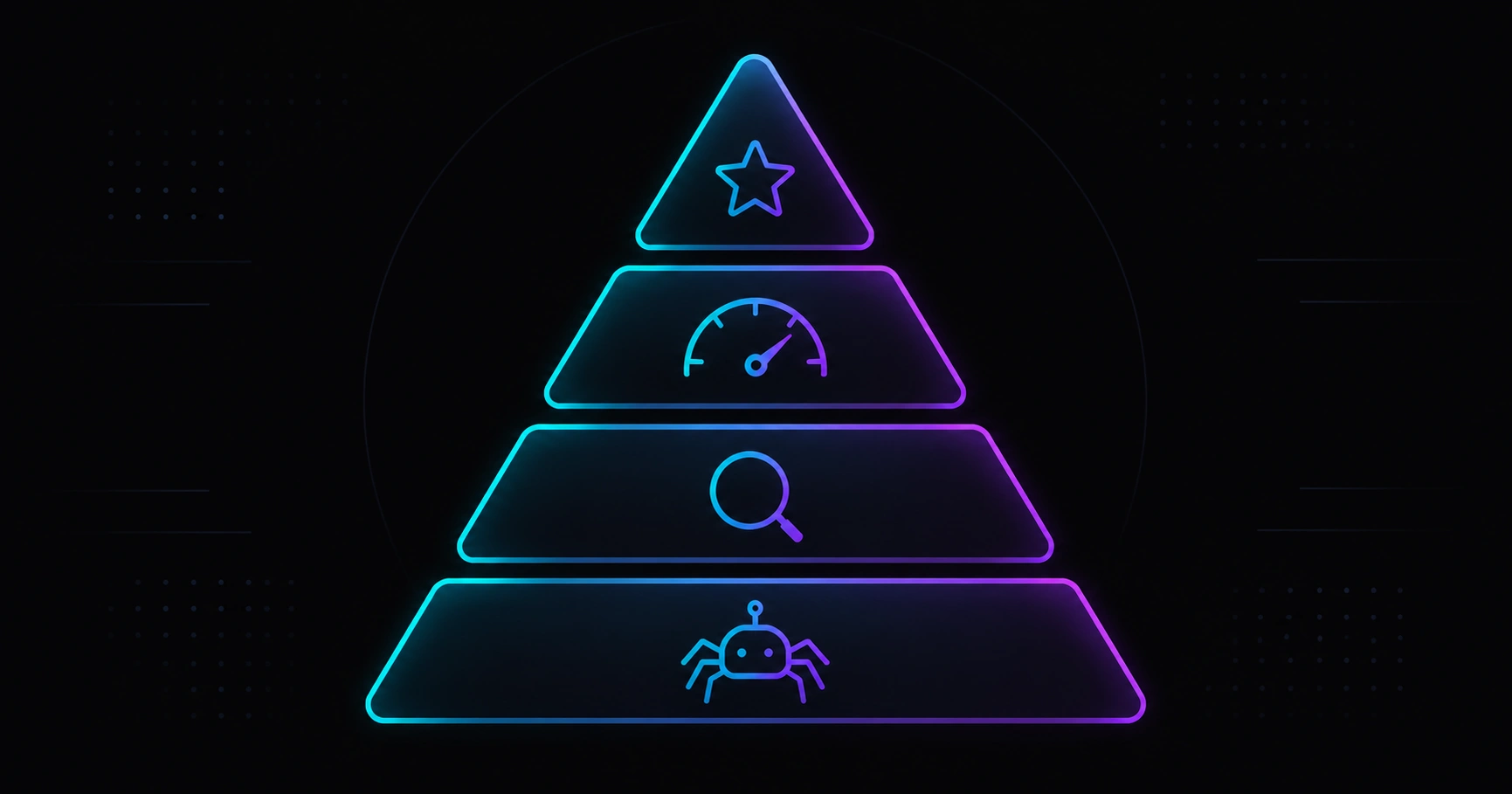
    Technical SEO priority pyramid for developers: crawling, indexing, performance, and content
    Technical SEO has a clear priority order: first fix what blocks crawling, then what prevents indexing, then performance.

    Table of contents

    The technical SEO pyramid

    Most articles list metrics without hierarchy. But technical SEO has a layered logic: if the bottom layer fails, the ones above it do not matter.

    1. Crawling — Can Googlebot reach the content?
    2. Indexing — Does Google understand which URL is canonical and in which language?
    3. Performance — Does it meet Core Web Vitals thresholds?
    4. Content and authority — Does it answer better than the competition?

    A developer can directly influence the first three layers. The fourth depends on the editorial team, but it also benefits from clean URL structure and solid internal linking—both engineering decisions.

    1. Crawling: the first thing to measure

    If Googlebot cannot crawl a page, it does not exist for the search engine. The most common crawl errors on sites with a modern frontend (React, Next.js) or decoupled CMS — for example a headless WordPress with Next.js project — are:

    5xx errors

    A server response (timeout, CMS API error, failed SSR) tells Google the page is unavailable. A few intermittent 5xx on secondary routes is tolerable; on the homepage or service landing pages it is critical. Monitor in Search Console → Coverage → Server error (5xx).

    Redirect chains

    A single 301 redirect is correct; three redirects in a chain (/contact/contact//en/contact/) waste crawl budget and can confuse PageRank attribution. Always point to the final destination in a single hop when possible.

    Misconfigured robots.txt

    An accidental Disallow: / in production blocks the entire site. Check https://yourdomain.com/robots.txt before every deploy. In Next.js (and other frameworks) you can define it in a version-controlled file in your repo.

    JavaScript that blocks crawling

    If critical content only exists in the DOM after JavaScript executes, Googlebot may not see it on the first crawl pass. Server Components in Next.js App Router eliminate this problem: HTML arrives complete in the first response.

    2. Correct indexing

    Googlebot reaching your page does not guarantee it indexes it correctly. There are three signals Google checks to decide which URL to index:

    Canonical

    The <link rel="canonical"> tells Google which is the definitive URL. On multilingual sites, each page needs its own canonical pointing to its locale version:

    <!-- correct -->
    <link rel="canonical" href="https://yourdomain.com/en/service/" />
    
    <!-- wrong: points to CMS or admin subdomain -->
    <link rel="canonical" href="https://cms.yourdomain.com/service/" />

    Always validate in View Source of the public URL, not in React DevTools.

    hreflang

    On EN + ES sites, each page needs correct hreflang tags. A common mistake is pointing hreflang="en" to the same URL instead of the EN version:

    <link rel="alternate" hreflang="en" href="https://yourdomain.com/en/service/" />
    <link rel="alternate" hreflang="es" href="https://yourdomain.com/es/servicio/" />

    If the CMS manages translations and the frontend consumes them via API, configure hreflang in the layer that generates public HTML (e.g. generateMetadata in Next.js).

    Coherent sitemap

    The sitemap should list only canonical, indexable URLs. A URL that appears in the sitemap but has noindex creates a contradictory signal that Google resolves at its own discretion. Generate the sitemap dynamically from the same data source as your routes.

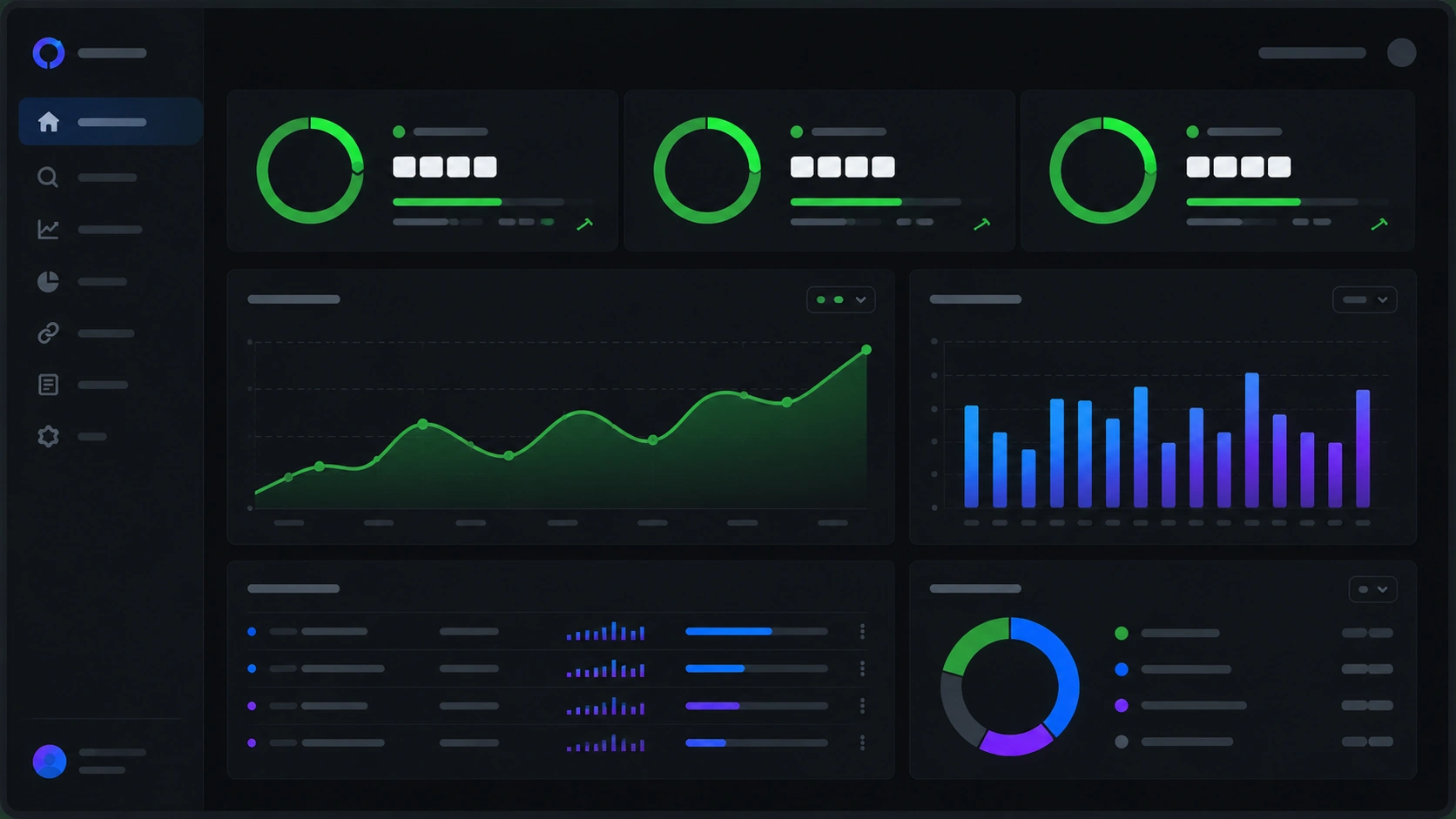
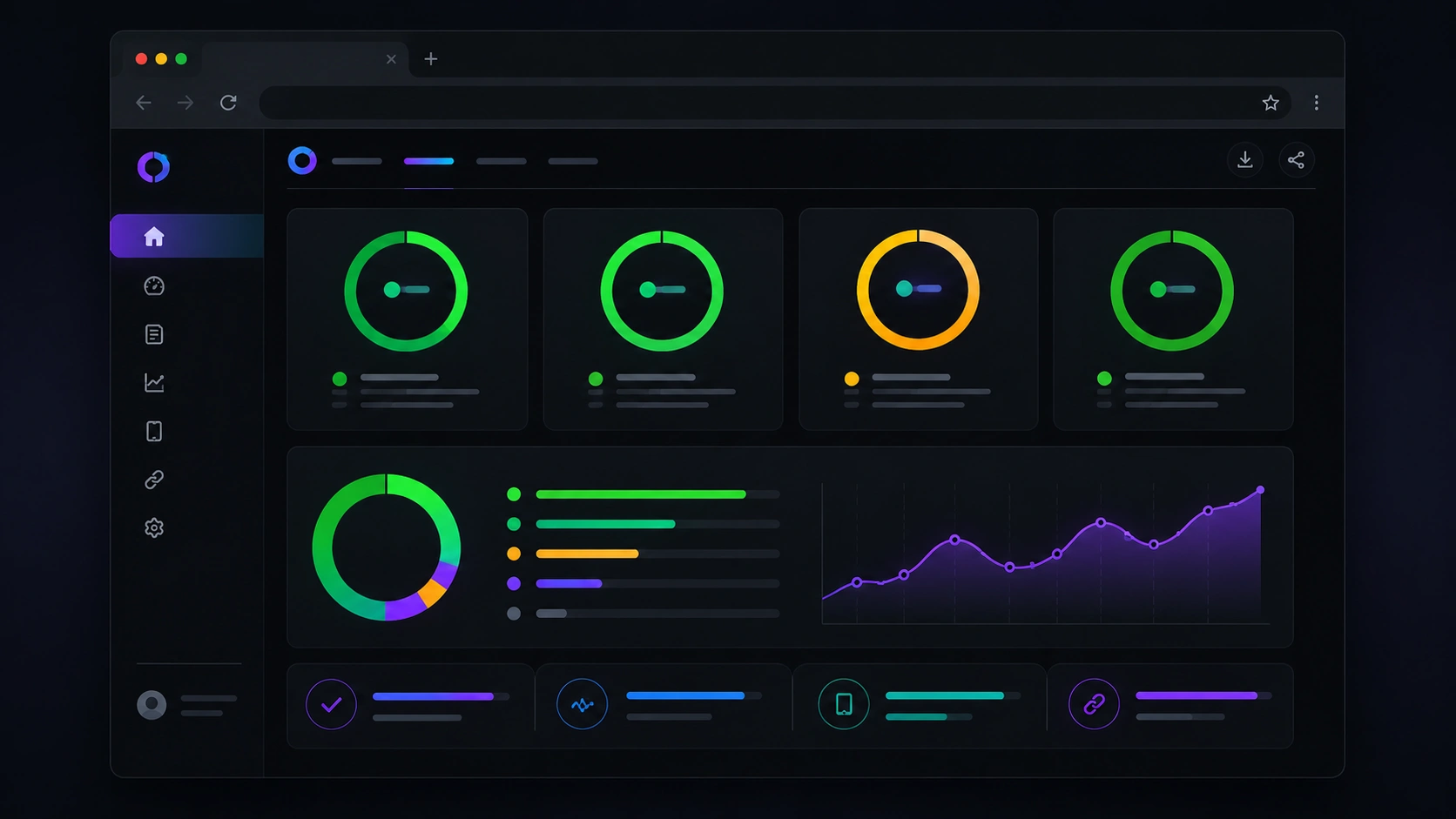
    Core Web Vitals dashboard showing LCP, INP, and CLS in green
    Core Web Vitals in green: LCP under 2.5 s, INP under 200 ms, and CLS under 0.1 are the minimum targets before considering other performance factors.

    3. Core Web Vitals

    Google has used Core Web Vitals as a ranking signal since 2021. In 2026 the weight has increased for mobile searches. The three metrics to monitor:

    Metric What it measures Green threshold
    LCP (Largest Contentful Paint) Time until the largest visual element is visible < 2.5 s
    INP (Interaction to Next Paint) Response to user interactions (clicks, keyboard) < 200 ms
    CLS (Cumulative Layout Shift) Visual stability: content should not shift while loading < 0.1

    Common causes of high LCP

    • Hero image without priority in next/image: the browser downloads it too late.
    • Render-blocking web fonts: use font-display: swap or load them with next/font.
    • High TTFB from slow SSR: check slow CMS/API queries or missing cache or incremental regeneration.

    Common causes of high CLS

    • Images without explicit dimensions (width and height or aspect-ratio in CSS).
    • Cookie banners that appear late and push content down.
    • Web fonts that substitute the system font with different metrics.

    4. Mobile speed: the most overlooked metric

    PageSpeed Insights has two tabs: lab data (Lighthouse) and field data (CrUX). Field data is what Google uses for ranking. On new or low-traffic sites CrUX will be empty—trust lab data and Search Console in that case.

    Always check in mobile mode with simulated 4G network, not just desktop. A site scoring 95 on desktop Lighthouse can score 60 on mobile due to unoptimized images or excessive JavaScript.

    You can simulate this analysis directly in the Veloce Devs PageSpeed simulator without installing anything.

    The 2026 measurement stack

    These tools cover all four pyramid layers in most projects:

    Tool What it measures Free
    Google Search Console Crawling, indexing, field CWV, sitemaps Yes
    PageSpeed Insights Lab + field CWV, Lighthouse audit Yes
    Screaming Frog (free tier) Bulk crawling, redirects, canonicals, meta tags Yes (500 URLs)
    curl / httpstatus Redirect chains, HTTP headers, status codes Yes
    SEO suite / rank tracking Keywords, rankings, recurring audits Varies (e.g. Veloce Devs SEO services)

    Integrating it into your workflow

    Measuring once is not enough. Technical SEO is maintained by integrating checks into the development cycle:

    Every pull request

    • Does the change affect routes or slugs? → Add a redirect if an existing URL is removed.
    • Are new images added? → Verify descriptive alt and WebP/AVIF format.
    • New heavy JS component? → Check bundle impact with @next/bundle-analyzer.

    Weekly

    • Check Search Console: new 5xx, 404, or “Crawled – currently not indexed” pages.
    • Review Core Web Vitals on main landing pages.

    Monthly

    • Audit with Screaming Frog or equivalent: redirect chains, duplicate titles, orphan pages.
    • Compare GSC impressions and positions with the previous month.
    • Review sitemap: does it include all new URLs and exclude noindex ones?
    Developer SEO workflow diagram: pull request, deploy, weekly monitoring
    Sustainable technical SEO is integrated into the development cycle, not applied as a patch after launch.

    FAQ

    Where do I start if the site is already in production with issues?

    Start with Search Console: fix 5xx errors first (they affect crawling), then incorrect canonicals (they affect indexing), then out-of-range CWV (they affect ranking). In that order you get the greatest impact with the least effort.

    Are Core Web Vitals the most important SEO factor?

    No. They are a tiebreaker when content quality is similar. First make sure pages are correctly crawled and indexed; then optimize performance. A page with perfect LCP but no indexing does not rank.

    Does Next.js App Router already handle SEO automatically?

    It handles a lot: Server Components generate complete HTML, generateMetadata centralizes meta tags, and next/image optimizes formats. But it is still your responsibility to configure canonicals, hreflang, a coherent sitemap, and to avoid HTTP errors in production.

    How long until technical fixes show impact?

    It depends on the site’s crawl frequency. New or low-traffic domains can take 2 to 8 weeks. Use URL Inspection → Request indexing in Search Console to speed up key pages after each major fix.

    How fast is your site on mobile?

    Try the free Veloce Devs PageSpeed simulator or request a technical audit with a prioritized, impact-ranked action plan.

    Test PageSpeed free Contact the team

  • SEO DevTools: The Complete Guide for Developers

    SEO DevTools: The Complete Guide for Developers

    If you ship code, SEO is not something you can fully outsource to marketing. Most ranking failures start in engineering: JavaScript that blocks crawling, broken canonical tags, Core Web Vitals out of range, or sitemaps that do not match your real URL architecture. SEO devtools exist to bridge that gap between development and organic visibility.

    This guide covers the essential SEO toolkit for developers—from the browser to CI/CD—with official resources and a workflow you can apply in your repo today.

    Developer SEO workflow: code editor, Lighthouse audit, and keyword dashboard
    Modern technical SEO combines browser DevTools, Search Console data, and automation in the deploy pipeline.

    Table of contents

    Why SEO is a developer responsibility

    Google does not index marketing promises—it indexes served HTML, HTTP responses, internal links, and performance signals. When a site takes more than three seconds on mobile or returns 5xx on locale-less routes, the damage happens before anyone writes a meta description.

    High-performing teams usually share one pattern: developers validate technical SEO on every pull request, while marketing focuses on search intent and content. You do not need to become an SEO consultant; you need to know what to measure and where to look.

    Browser DevTools (Chrome and Edge)

    Chrome DevTools (and Edge equivalents) are the first line of defense. These tabs matter most in audits:

    1. Lighthouse

    Generates performance, accessibility, best practices, and basic SEO scores for the loaded URL. Use incognito mode with extensions disabled to avoid false positives.

    Lighthouse report showing high performance, accessibility, and SEO scores
    Lighthouse in DevTools: a fast starting point before drilling into each metric.

    2. Network

    Filter by Doc, JS, and CSS. Look for:

    • Render-blocking resources (missing critical CSS, synchronous JS in <head>).
    • 404 responses or redirect chains (301301200).
    • High TTFB on HTML documents (server, cache, or slow SSR).

    3. Coverage

    Shows how much downloaded JS/CSS is unused on the current view—ideal for spotting bloated bundles on lightweight landing pages.

    4. Elements + meta tag search

    With Ctrl+F inside Elements, verify in served HTML:

    • One <title> and one <meta name="description"> per page.
    • <link rel="canonical"> pointing to the canonical URL (no duplicate www if apex is policy).
    • Consistent hreflang on multilingual sites (en, es, x-default when applicable).
    • Accidental noindex in production.

    Lighthouse and PageSpeed Insights

    Local Lighthouse measures the current session; PageSpeed Insights adds field data (CrUX) when available. For new sites with no traffic, CrUX will be empty—trust lab data and Search Console.

    You can test your domain with PageSpeed Insights or tools such as the PageSpeed simulator on our SEO page. Red scores usually mean LCP issues (hero image without priority, blocking fonts) or INP issues (too much JavaScript on the main thread).

    Target benchmarks:

    • LCP < 2.5 s
    • INP < 200 ms
    • CLS < 0.1
    • Lighthouse SEO score ≥ 90 on main templates

    Google Search Console

    Search Console is the source of truth for how Google sees your site. As a developer, review weekly:

    • Pages → Indexing: 5xx, 404, “Crawled – currently not indexed”, and unnecessary redirects.
    • Sitemaps: submit https://yourdomain.com/sitemap.xml and confirm canonical URLs match the sitemap.
    • Core Web Vitals: red/amber URLs that need code changes, not copy tweaks.
    • URL Inspection: test a freshly deployed URL and request indexing after fixing canonicals or hreflang.
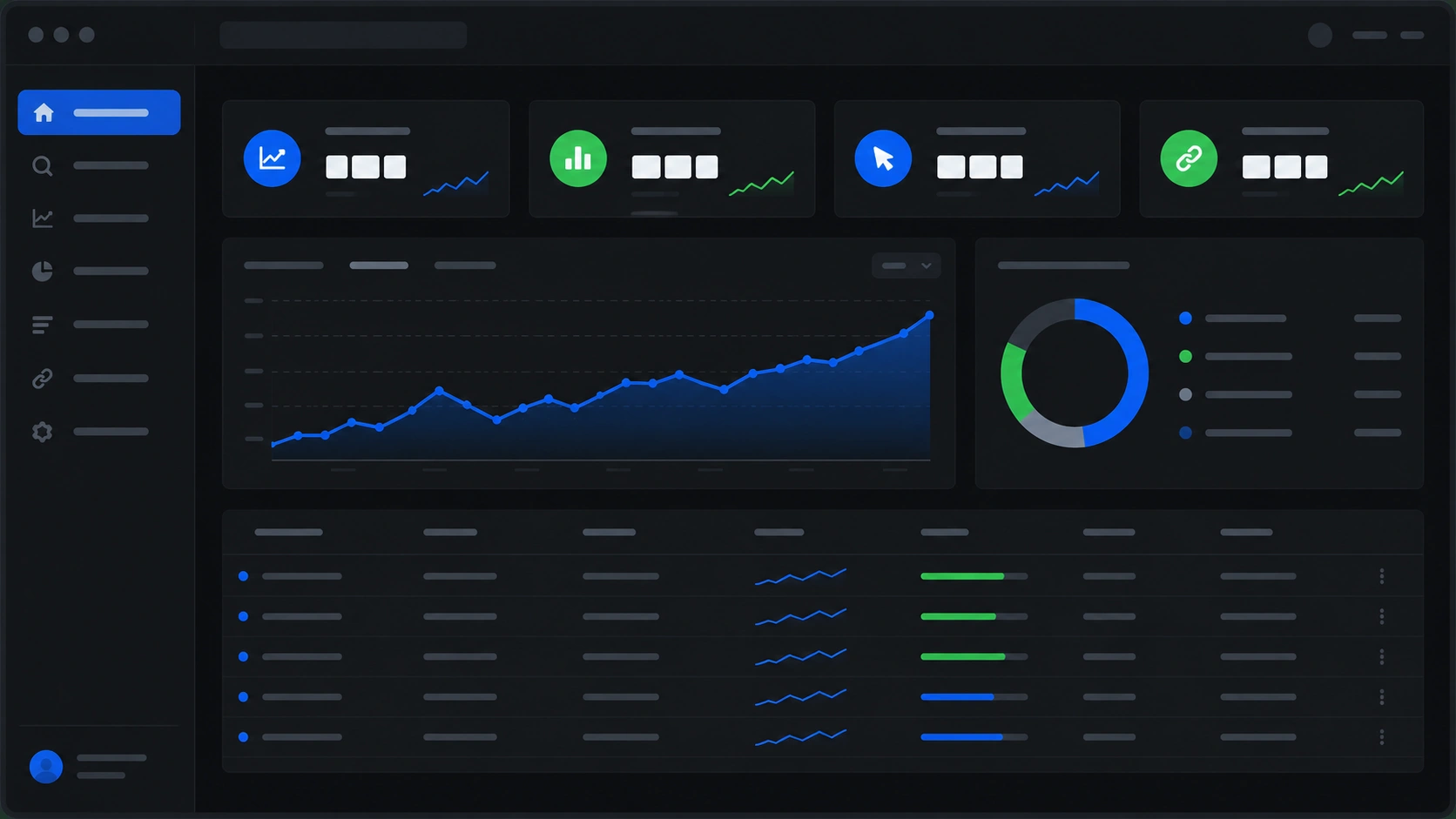
    SEO analytics dashboard showing indexed pages, impressions, and crawl errors
    Search Console connects deployed code with what Google actually crawls and indexes.

    Crawling, logs, and CLI

    When the site grows, the browser does not scale. Add CLI tools to the workflow:

    Tool Purpose
    curl -I URL Check HTTP status, Location, cache headers, and redirects.
    Screaming Frog (free tier) Crawl broken links, duplicate titles, empty meta tags, and click depth.
    npx lighthouse URL --view Repeatable audits in CI or local scripts.
    Schema validators Test JSON-LD (Organization, FAQPage, BlogPosting) before publish.

    Running Lighthouse in GitHub Actions or your CI/CD pipeline prevents regressions when someone adds a third-party script “just to test.”

    SEO responsibilities in headless architectures

    In decoupled setups (CMS + separate frontend), SEO is split like this:

    • Frontend (e.g. Next.js): metadata API, sitemap, robots.txt, semantic HTML, SSR/ISR.
    • CMS (e.g. WordPress): content, SEO plugin metadata, translations, custom fields exposed via API.
    • CDN: HTTPS, compression, cache rules without breaking dynamic HTML.
    • Monitoring: keywords, rankings, and recurring audits as the site grows.

    Keyword research and rank tracking complement Lighthouse (point-in-time performance) with continuous SERP data. Explore options on our SEO services page if you need a managed suite.

    If you are considering a decoupled CMS with a modern frontend, see our guide Headless WordPress with Next.js: What It Is and Why It Matters for SEO for benefits, myths, and when it makes sense.

    Pre-deploy checklist for developers

    Add this list to your PR template or repo wiki:

    1. Are canonical and hreflang present in served HTML (View Source, not only React devtools)?
    2. Does the sitemap include only indexable URLs (no drafts, no noindex)?
    3. One H1 per view and logical H2/H3 hierarchy?
    4. Images with descriptive alt and modern formats (WebP/AVIF)?
    5. Mobile Lighthouse ≥ 90 for performance and SEO on affected templates?
    6. 301 redirects for legacy URLs and locale-less routes?
    7. Search Console free of new 5xx or 404 errors after deploy?
    8. Structured data validated with no critical errors?

    Prefer a full-stack review? Request a technical SEO audit with a prioritized roadmap.

    FAQ

    Is Lighthouse enough for SEO?

    No. Lighthouse covers basic technical signals and performance, but it does not replace Search Console (real indexing), keyword analysis, or large-scale internal link audits.

    What is “dev SEO” in practice?

    Applying technical SEO inside the development cycle: metadata in server components, clean URLs, performance, schema, and post-deploy monitoring—instead of patching issues after launch.

    Should I use SEO plugins on headless WordPress?

    Yes on the CMS side (Yoast, Rank Math, or similar—with an API/GraphQL extension if needed) so the frontend can consume titles and descriptions. The public frontend still generates the HTML—always validate live output.

    How long until Google indexes technical fixes?

    From hours to several weeks depending on authority and crawl budget. After fixing canonicals or sitemap, use URL Inspection in Search Console to speed up key pages.

    Want a diagnosis on your domain?

    Try the free PageSpeed simulator or talk to a Veloce Devs engineer for an actionable technical SEO plan.

    Free audit Contact the team